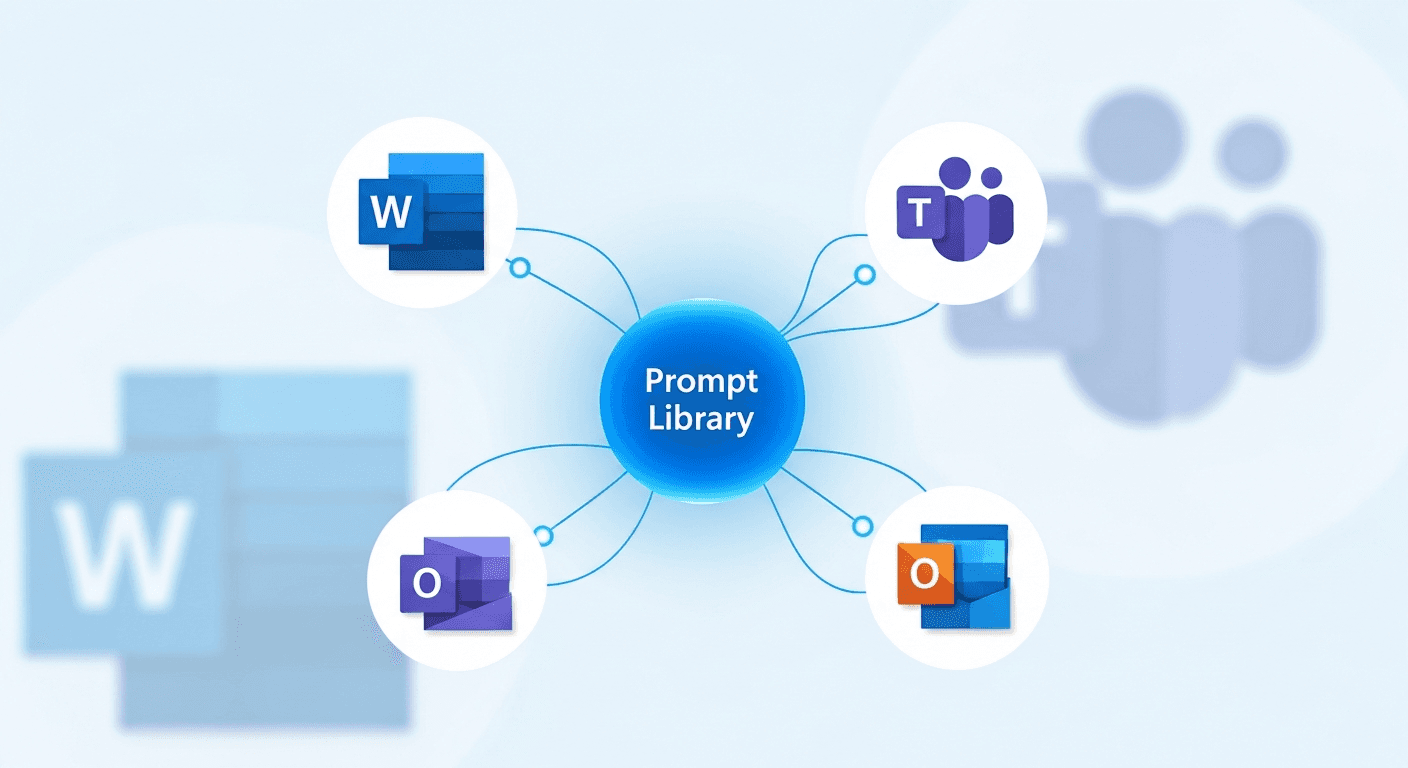
Microsoft 365 Copilot is embedded across every surface your team works in - Word, Excel, PowerPoint, Teams, Outlook, and OneNote. It is one of the most widely deployed large language model (LLM) tools in enterprise environments. Your organization is paying for it. Your teams are using it every day.
But the prompts your people write inside it live nowhere.
Every prompt that produces a great meeting summary in Teams, a sharp executive briefing in Word, or a clean client email in Outlook exists only in that conversation - context-specific, unretrievable, invisible to the rest of your organization. The moment that conversation ends, the prompt is gone.
For individual users, this is an annoyance. For enterprise teams - where compliance, governance, and institutional knowledge retention matter - it is an operational risk.
What Microsoft Copilot Offers Natively for Prompt Management
Microsoft has built some prompt discovery features into the Copilot ecosystem, but they do not solve the prompt management problem for teams.
The Copilot Prompt Gallery (m365.cloud.microsoft/copilot-prompts) is a community-sourced library of prompts contributed by Microsoft and the Copilot user community. It is genuinely useful for discovering what Copilot can do. It is not a personal or team prompt library. You cannot save your own prompts to it, share a team-specific prompt with your colleagues through it, or retrieve a prompt you refined last week.
There is no built-in mechanism in Microsoft 365 Copilot to save a prompt you wrote, store it for later retrieval, or share it with your team. Each Copilot interaction is scoped to the document, email thread, or Teams meeting you are working in at that moment. When the context closes, the prompt goes with it.
Microsoft Viva adds a knowledge management layer on top of Microsoft 365, but it is designed for documents, expertise directories, and learning content - not for prompt storage or retrieval workflows. SharePoint wiki pages can hold text, but accessing a saved prompt through SharePoint during a live Copilot session requires multiple navigation steps, takes 30 to 60 seconds, and sees low adoption in practice.
The honest summary: Microsoft gives you tools to discover community prompts and to use Copilot effectively within a session. It does not give you a library for your team's own prompts.
The Enterprise-Scale Problem
In a small team, the lack of prompt storage is inconvenient. In an enterprise environment, it compounds into a structural knowledge problem.
Your customer success team has developed a prompt that generates client health summaries in exactly the format your account executives need. Your legal team has a prompt for initial contract review that took three iterations to get right. Your sales enablement team has a prompt for competitive battle card summaries. None of these exist in a shared, retrievable form. They exist in individual Copilot sessions, in the memory of the person who figured them out, or in a personal note somewhere.
Across thousands of Microsoft 365 Copilot seats, this means thousands of individual prompt discoveries that never become organizational knowledge. Every new hire on the customer success team starts from scratch. Every time a sales rep opens PowerPoint to build a deck, they recreate prompts that three other reps have already perfected. Every time a key person leaves, their Copilot workflow knowledge leaves with them - a risk detailed in our guide on what happens to prompts when employees leave.
IT and operations leaders have no visibility into which prompts are being used, which are producing consistent results, or which may carry compliance risks. There is no audit trail. There is no version history. There is no mechanism to push an approved prompt to the team.
The Copilot investment compounds your AI capability. The prompt management gap compounds your knowledge loss.
Where Copilot Prompts Get Used Most - and Most Lost
Understanding where the problem is worst helps prioritize where to focus.
Copilot in Teams
Teams is where Copilot prompt loss is most acute in most enterprises. Meeting recap prompts, action item extraction, and follow-up email drafts are produced in-session and disappear when the meeting ends. Teams that run dozens of meetings per week are recreating the same prompt structures constantly - "summarize the key decisions and assign action items by owner" - because there is nowhere to save the version that works.
Copilot in Outlook
Email drafting prompts are the most individually refined type of Copilot output. A prompt for responding to an escalated customer complaint in a specific tone took time to develop. A framework for writing executive status updates with the right level of detail reflects real judgment. In Outlook, these prompts are buried in the suggestions history of an individual inbox - inaccessible to the manager who could benefit from them, irretrievable after the email is sent.
Copilot in Word and PowerPoint
Document generation prompts - briefing templates, proposal frameworks, analysis structures - represent some of the highest-value prompt work in an organization. A prompt that reliably produces a first-draft board update in the right format is worth real time savings. Yet in Word and PowerPoint, Copilot suggestions are interaction-specific. The prompt that produced the best result for one document is not surfaced the next time the same author opens a new document, let alone available to a colleague.
Copilot for Sales and Service
CRM-integrated Copilot workflows in Dynamics 365 and Microsoft Sales Copilot are particularly valuable for sales and customer service teams - and particularly fragile. A prompt sequence for generating call prep summaries from CRM data represents significant sales engineering work. When the rep who developed it moves to a different territory or leaves the company, the workflow leaves with them.
Three Approaches to Saving Copilot Prompts
Teams working around Microsoft's native limitations have settled on three general approaches, each with meaningful trade-offs.
Microsoft Lists is the most practical Microsoft-native option and often overlooked. You can create a Lists app prompt library - with columns for prompt name, category, prompt text, tags, and owner - accessible from Teams, SharePoint, and the Lists app itself. The Microsoft community has published detailed templates for this. Lists is more structured than a SharePoint wiki and searchable within the list. The limitation remains access speed: getting a prompt from a Lists entry into a live Copilot session still requires switching context.
SharePoint or Teams Wiki pages are the most common first attempt after Microsoft Lists. IT creates a shared page, teams are asked to contribute their best Copilot prompts, and a nominal taxonomy gets applied. The structural problem is access speed. Retrieving a prompt from SharePoint during a live Copilot session in Word requires opening a browser, navigating to the site, finding the right page, and manually copying the text - a workflow that takes 45 to 90 seconds and that employees skip under deadline pressure. Libraries created this way see initial adoption that decays to near-zero within two to three months.
Microsoft Viva adds knowledge discovery and topic organization above the SharePoint layer. For prompt management specifically, it does not change the access speed problem. Viva is designed to surface relevant documents and expertise when you might need them, not to deliver a specific prompt text at the moment of a Copilot interaction. It is a knowledge management tool that does not intersect with the prompt retrieval use case.
An external prompt library with browser extension access is the approach that solves the retrieval problem. A browser extension overlaying the Copilot web interface (copilot.microsoft.com) allows users to access saved prompts directly within the session, without switching tabs or navigating to a separate system. Access time drops to under five seconds. The limitation is that browser extensions work in the Copilot web interface but not natively in the Office desktop applications - Word, Excel, PowerPoint - where much of enterprise Copilot usage happens. Teams that primarily use Copilot through the browser (Teams web, Outlook web, copilot.microsoft.com) get full benefit. Teams that primarily use Office desktop apps get partial coverage.
For a broader comparison of how teams approach this problem, see our complete guide to prompt management and the best prompt management tools comparison.
Governance and Compliance Considerations
For enterprise IT and compliance teams, prompt management is not just a productivity question. It is a governance question.
Prompt injection and security. When employees use ad-hoc, unreviewed prompts with enterprise data in Copilot, there is no mechanism to prevent prompts that instruct the model to handle sensitive data in ways that violate policy. An approved prompt library with role-based access lets IT and compliance teams define which prompts are sanctioned for use with which data types - an important control for organizations subject to GDPR, HIPAA, or financial services regulation.
Audit trails. In regulated industries, the instruction set given to an AI model is material information. If an audit needs to reconstruct what prompt was used to draft a contract clause or generate a financial projection, a personal Copilot session history provides nothing useful. A version-controlled prompt library with timestamps and authorship records creates an auditable trail.
Consistent approved language. Legal, HR, and compliance teams often need to ensure that specific language - required disclosures, approved terminology, prohibited phrasing - appears consistently in AI-generated outputs. An approved prompt library with protected folders and role-based editing controls is the mechanism that makes this enforceable rather than advisory.
Preventing sensitive data in prompts. A well-structured prompt library enforces the correct pattern: templates with {{variable}} placeholders rather than prompts with embedded customer names, account numbers, or patient identifiers. This structural separation is a data governance requirement in any regulated environment. Without it, prompt sharing becomes a data sharing risk.
Managing Copilot Prompts Alongside ChatGPT and Other AI Tools
Most enterprise environments are not single-AI. The reality in 2026 is that Microsoft 365 Copilot handles document and communication workflows, while employees use ChatGPT, Claude, or Gemini for tasks outside the Microsoft ecosystem - research synthesis, long-form writing, coding assistance, and more.
This means the prompt management problem is not Microsoft-specific. It is organization-wide.
A prompt for synthesizing competitive intelligence works in both Copilot and ChatGPT. A prompt framework for structuring executive updates applies whether the output starts in Word with Copilot or in Claude. When prompts are managed in a Microsoft-only location - a Teams wiki, a SharePoint page organized around Copilot use cases - they remain inaccessible to the same employee using a different tool for the same type of task.
A cross-platform prompt library accessible from any AI tool - through a browser extension that works on copilot.microsoft.com as well as ChatGPT, Claude, and Gemini - means your organization's prompt knowledge is not siloed by tool. The institutional knowledge your customer success team develops in Copilot for writing renewal emails is available to the same team if they are drafting proposals in ChatGPT.
This is the unified library argument: prompts are thinking tools, not platform-specific configurations. For a detailed look at how this works in practice, see our guide on prompt management for teams using multiple AI tools.
How to Build a Copilot Prompt Library for Your Team
If you are starting from scratch, the practical approach is straightforward.
Start by collecting. Ask five to ten Copilot power users in different functions to share their most-used prompts - the ones they have refined and return to consistently. You will quickly surface the highest-value prompts in your organization and identify where the biggest gaps in standardization exist.
Organize by function, not by application. A prompt that generates a meeting recap goes in Meetings/Summaries, not in Copilot in Teams. This structure stays useful if your team's tool mix changes.
Convert the best prompts to variable templates. A prompt that five different people use with slight variations - different customer names, different report types, different time periods - should be one template with {{variable}} fields rather than five stored variations. This reduces maintenance burden and makes the library cleaner for new users.
Assign ownership. A prompt library without a maintainer becomes a cluttered archive within three months. Designate a prompt steward per department, with responsibility for reviewing new contributions, retiring outdated prompts, and quarterly audits. For a detailed look at this problem, see our guide on building a shared prompt library for your team.
Frequently Asked Questions
What is the difference between Microsoft Copilot and Microsoft Copilot Studio?
These are two distinct products. Microsoft 365 Copilot is the AI assistant embedded in Word, Excel, PowerPoint, Teams, and Outlook - the tool most enterprise employees use daily. Microsoft Copilot Studio is a low-code platform for building custom Copilot agents and chatbots, primarily used by IT and development teams. Copilot Studio does have a native Prompt Library feature, but it is for building custom AI agents - not for saving and sharing the prompts individual employees use in M365 Copilot. This guide covers M365 Copilot end-user prompt management.
Does Microsoft have a prompt library for Copilot?
Microsoft does not provide a personal or team prompt library for saving your own prompts in M365 Copilot. You cannot save a prompt you write in a Copilot session for later retrieval. The Copilot Prompt Gallery (m365.cloud.microsoft/copilot-prompts) is a community-sourced discovery resource - it is not a mechanism for saving, organizing, or sharing your team's own prompts. Microsoft Lists can be used to build a structured team prompt library within the Microsoft 365 ecosystem, though retrieval speed remains a limitation.
What is the Copilot Prompt Gallery?
The Copilot Prompt Gallery is a publicly accessible collection of prompt examples contributed by Microsoft and the Copilot user community. It is organized by application and use case, and it is useful for discovering what Copilot can do. It does not allow you to save your own prompts, and it is not a team-specific or organization-specific library. Think of it as a recipe website - you can browse it for ideas, but it does not store your personal recipes.
How do you share Copilot prompts with your team?
Microsoft 365 provides no native mechanism for sharing prompts between team members. The common workarounds are SharePoint pages, Teams channel posts, or OneNote sections used as informal prompt repositories. The practical problem with all of these is access speed: retrieving a prompt from SharePoint during a live Copilot session takes 45 to 90 seconds and interrupts workflow. Teams with more than a few dozen prompts typically see adoption drop off quickly. A dedicated prompt management tool with a browser extension reduces retrieval to under five seconds, which is what actually drives consistent team adoption.
Can you use the same prompts in Copilot and ChatGPT?
Yes. Most prompt techniques are model-agnostic at the conceptual level. A prompt framework for structuring a client-facing summary, generating a competitive analysis, or reviewing a document for logical gaps works across Copilot, ChatGPT, Claude, and Gemini with minor adjustments. If your team stores prompts in a cross-platform library rather than a Microsoft-specific location, the same prompt library is accessible regardless of which AI tool a team member is using at any given time. This matters in organizations where different teams or different use cases favor different AI tools.
How do enterprises manage AI prompts for compliance?
In regulated industries, prompt management requires four capabilities that generic tools do not provide: version history with timestamps and authorship (so you can reconstruct what instructions were given and when); role-based access controls with approval workflows (so that high-stakes prompts cannot be modified without review); variable template enforcement (so that prompt templates never contain actual customer data, only placeholders); and access logs showing which users retrieved which prompts. Organizations under GDPR, HIPAA, or financial services regulation should treat these as baseline requirements, not optional features. SharePoint pages and Teams wikis provide none of them.
The Bottom Line
Microsoft 365 Copilot makes your team more capable inside every Microsoft application. It does not preserve what your team learns about using it well.
The prompts that produce your best Copilot outputs - the meeting recap format that actually captures decisions, the email draft structure that reduces revision cycles, the document generation prompt that produces publishable first drafts - are institutional knowledge. Right now, they are being created and lost in individual Copilot sessions, invisible to IT, unreachable by new hires, and unrecoverable when the people who developed them leave.
Solving this requires a layer that Microsoft does not provide: a shared prompt library with fast retrieval, version history, role-based permissions, and access controls that fit enterprise governance requirements.
PromptAnthology gives enterprise teams a centralized prompt library accessible from copilot.microsoft.com and every other AI tool your organization uses. Role-based permissions let IT lock down approved prompts for regulated workflows. Version history creates the audit trail compliance teams need. Variable templates enforce the structural separation between prompt instructions and sensitive data.